
Potatso runs on iPhone and iPad with iOS 17 or later. To use it, you need at least one proxy server: a share link, a subscription URL or a configuration file from your provider, or the settings of a server you run yourself.
The first time you open Potatso, it walks you through setup in four steps: name a profile, add your servers, choose a route and allow the VPN. This page follows those steps, then shows how to connect.
Install Potatso
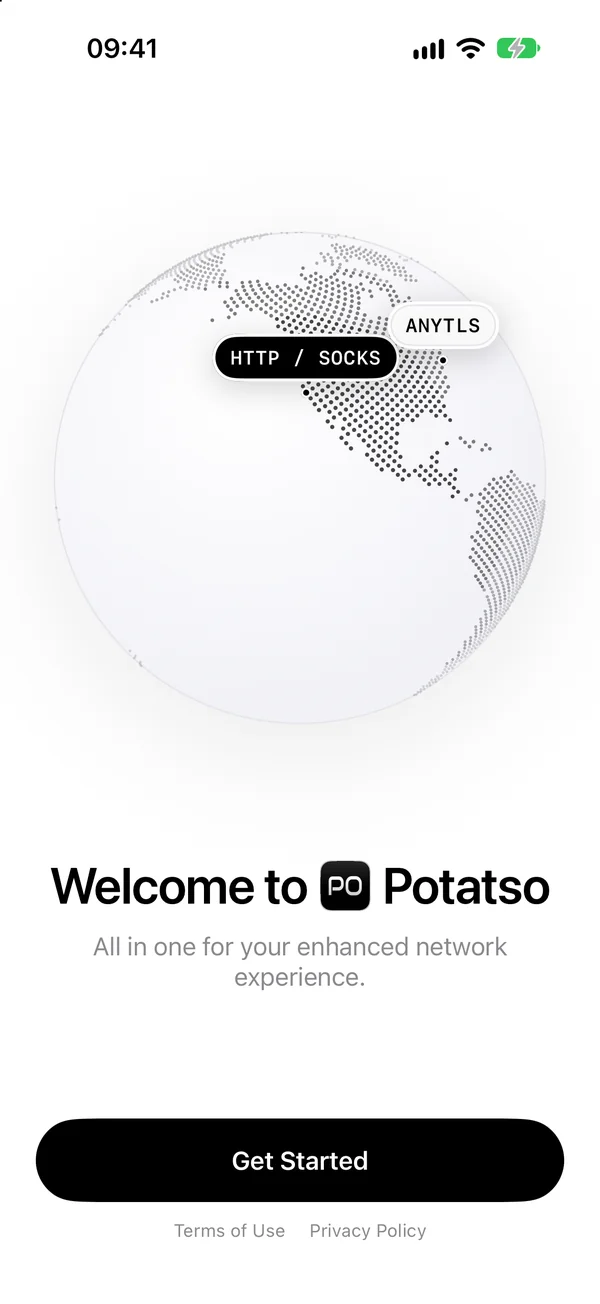
Download Potatso from the App Store and open it. Tap Get Started.
Name your profile
A profile holds your servers, proxy groups, rules and DNS settings. Type a name, or tap one of the suggestions, then tap Continue. You can change the name later.
Add your servers
The Add your servers step offers four ways in:
| Option | What it does |
|---|---|
| Paste a link | Tap Paste to import the link on your clipboard straight away. It can be a share link such as vless://…, a subscription URL or a configuration URL. |
| Scan a QR code | Scans a QR code that holds a share link or a subscription URL. To read a QR code from a picture, tap the photo button in the corner of the scanner. |
| Import a link or file | Opens the importer: paste a link or a whole configuration, or choose a configuration file. See Import from a file. |
| Enter a server manually | Opens an empty server form. See Enter a server by hand. |
Potatso detects the format on its own. It reads share links, subscriptions, Shadowsocks JSON and SIP008, Mihomo / Clash YAML, V2Ray / Xray JSON, Surge profiles and rule lists. A subscription URL keeps updating after you import it. See Import subscriptions and configurations for each format.
Once something is imported, the step changes to Servers added and shows how many servers, groups and rules came in. You can add more the same way. Tap Continue.
If an import fails, the reason appears under the options.
No servers yet? Tap I don't have servers yet to finish setup without them. You can add servers later from Home.
Import from a file
- Tap Import a link or file.
- Under Source, choose File, then tap Choose File….
- Pick a YAML, JSON, CONF or text file. It must be UTF-8 text and no larger than 5 MB.
- Tap Continue, check the preview, then tap Add.
A file has nothing to update from, so its contents don't update later. Import the URL instead if your provider gives you one.
Enter a server by hand
- Tap Enter a server manually.
- Enter a Name, then choose the server's Protocol.
- Fill in Address and Port, then the settings your protocol needs, such as a password or user ID.
- Tap Save (the checkmark).
Each protocol page lists the settings Potatso supports: Shadowsocks, ShadowsocksR, Trojan, VLESS, VMess, HTTP and HTTPS, SOCKS5, Hysteria 2, AnyTLS and Snell.
Choose a route
The Choose a route step picks how the profile routes traffic and which server it uses. While you choose, Potatso tests every server's latency.
- Pick an outbound mode, if the step offers more than one:
- Rule: your configuration's rules decide what goes where. It's offered when your import has rules.
- Global: all traffic goes through the outbound you choose.
- Direct: nothing goes through a proxy.
- Pick the outbound from the card under the mode: tap one of the quick choices, or open the full list.
- Tap the button at the bottom. It shows the name of your choice, such as Use Tokyo 01, or Continue.
The fourth mode, Smart, isn't offered here. You can turn it on from Home later. See Outbound modes.
Allow the VPN
Potatso connects through a VPN configuration on your device. iOS asks you once before Potatso can add it.
- Tap Add VPN Configuration.
- When iOS asks, tap Allow.
Nothing connects yet. When the configuration is added, the step says You're all set. If iOS doesn't add it, tap Try Again and choose Allow.
You can tap Not now to skip this step. iOS then asks the first time you connect. If your device already has Potatso's VPN configuration, from an earlier install, Potatso skips this step.
Potatso then shows its Pro plans, unless you already have Pro. Close them to go to Home.
Connect
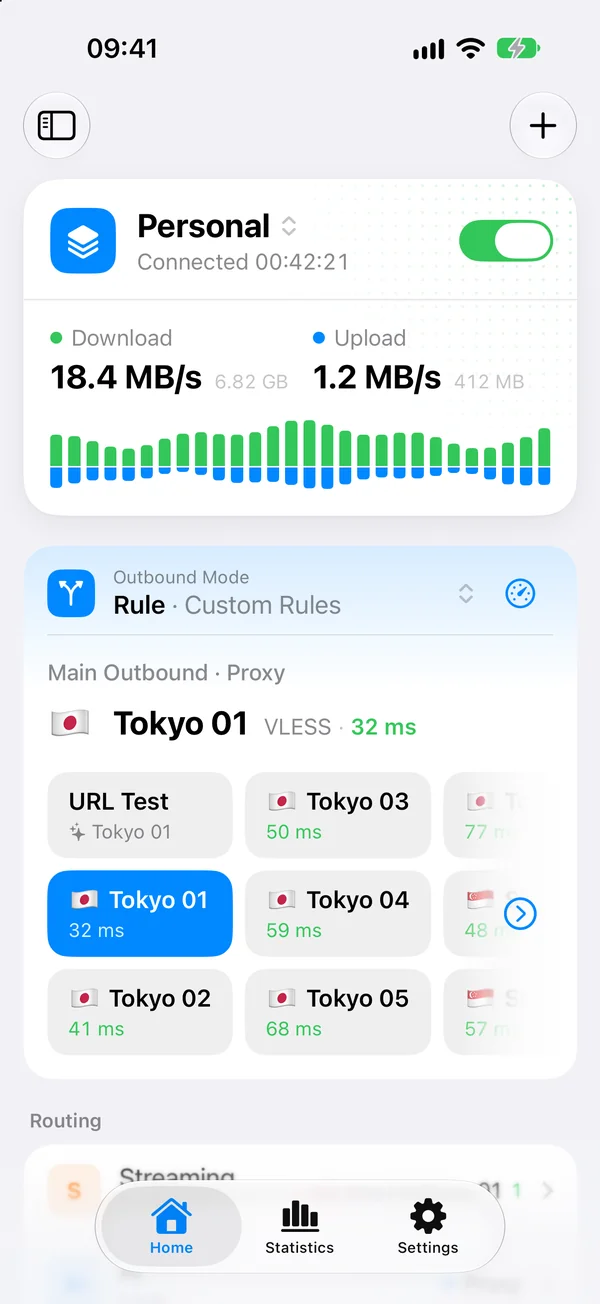
- Open Home. The status card at the top says Not Connected.
- Turn on the switch on the status card.
The status changes to Connecting…, then Connected. To disconnect, turn the switch off.
If Rule mode has no server to send traffic to, Potatso says Choose a server to connect and opens the list of outbounds. Pick one, then connect again.
Can't connect? See Troubleshooting.
Change the mode
The Outbound Mode row on Home shows the profile's mode. Tap it to choose Global, Smart, Rule or Direct. See Outbound modes for what each one does.
Add more servers
On Home, tap the + button at the top right. It offers:
- Add Proxy: enter a server by hand, as in Enter a server by hand.
- Import via Link/File: paste a link or configuration, or choose a file, then review the import preview.
- Scan QR Code: scan a share link or subscription URL, then review the import preview.
The preview shows what the import contains and where it goes. See Import subscriptions and configurations.