
To import a Clash subscription on iPhone or iPad, copy your provider’s subscription URL, paste it into a Mihomo/Clash-compatible app, check the preview and import. This guide shows each step with Potatso, a free proxy client for iOS: the preview, choosing what to import and where, automatic updates, and how your own changes survive each update.
Not sure what a subscription is? Read What is a proxy subscription? first.
What you need
- An iPhone or iPad with iOS 17 or later.
- A Clash or Mihomo subscription URL from your provider, such as
https://sub.example.com/api/v1/client/subscribe?token=abc123. A Clash config file (YAML) also works.
Potatso also imports Base64 (V2Ray / Xray / Shadowsocks) subscriptions, V2Ray / Xray JSON and Surge profiles. When it downloads a subscription, it identifies itself as clash.meta, so a provider that picks the format by app sends you its Clash / Mihomo configuration, with groups and rules.
Keep the URL to yourself. Your subscription URL works like a password. Don’t share it or paste it into online converters.
Step 1: Install Potatso
Download Potatso from the App Store and open it. Tap Get Started, name your profile and tap Continue.
On the Add your servers step, you can tap Paste a link, then Paste, to import your subscription straight into the new profile. During first-run setup, a pasted link is imported without a preview. That’s the quickest route, and the subscription still keeps updating.
To see the preview and choose what to import, use the importer from Home instead, as in the next step. You can also tap I don’t have servers yet to finish setup first.
Step 2: Paste your Clash subscription link
- On Home, tap the + button at the top right.
- Tap Import via Link/File.
- Under Source, keep Link and paste your subscription URL into the field.
- Tap Continue.
Potatso downloads the subscription and works out its format on its own, then shows the import preview.
Importing a config file instead
- Save the YAML file to the Files app.
- Tap +, then Import via Link/File.
- Under Source, choose File, then tap Choose File… and pick it. It must be UTF-8 text and no larger than 5 MB.
- Tap Continue.
You can also paste the whole YAML into the Link field. Either way, a file or pasted text is imported once: there’s nothing to update from.
Step 3: Check the preview
The top of the preview shows the import’s name, its format and the server it came from. If your provider reports your plan, you’ll also see:
- Data Used, with a progress bar when the plan has a total,
- Data Remaining, and
- Expires, which turns red once the date has passed.
If anything couldn’t be imported, a Compatibility Issues row shows how many problems there are. Tap it to see each one and why. Potatso skips servers it doesn’t support, such as TUIC or SSH proxies in a Clash file, and rules it can’t represent. Skipped rules are listed with their rule number, so you can find them in the YAML. Import Notices, such as a configuration downloaded over plain HTTP, are for your information only.
Choose what to import
Under Import, each part has its own row: Proxies, Proxy Groups, Rules and DNS. Tap a row to include it or leave it out. Rules need their proxy groups, and groups need proxies, so they’re selected together.
Tap View All Contents to see every proxy, proxy provider, group, rule and rule provider in the import.
Choose where it goes
Under Import To, pick a destination:
| Destination | What happens |
|---|---|
| New Profile | Creates a profile from the subscription. Your current profile stays as it is. Needs Potatso Pro. |
| Replace Current Profile | Replaces the proxies, groups and rules of the current profile, after you confirm. |
| Add to Current Profile | Adds the import to the current profile. A configuration with groups or rules is merged once. |
| Update “…” | Shown when a profile already follows this subscription. Updates it and keeps your changes. |
For a Clash subscription you want to keep in sync, choose New Profile or Replace Current Profile: a whole configuration in its own profile follows the subscription and updates. Adding it to an existing profile imports it once.
Auto Update
An import from a URL shows an Auto Update switch, on by default, with an Update Interval of Daily. Leave it on unless you want a frozen copy.
Tap the button at the bottom, such as Create “…” or Replace “…”, to import.
Step 4: Choose a server and mode
A Clash configuration with rules imports in Rule mode, unless its mode says otherwise. In Rule mode, the rules decide what goes through the proxy and what connects directly.
- On Home, check the Outbound Mode row. Tap it to switch to Global if you want everything through one server.
- Tap a node on the Main Outbound card, or All Outbounds for the full list.
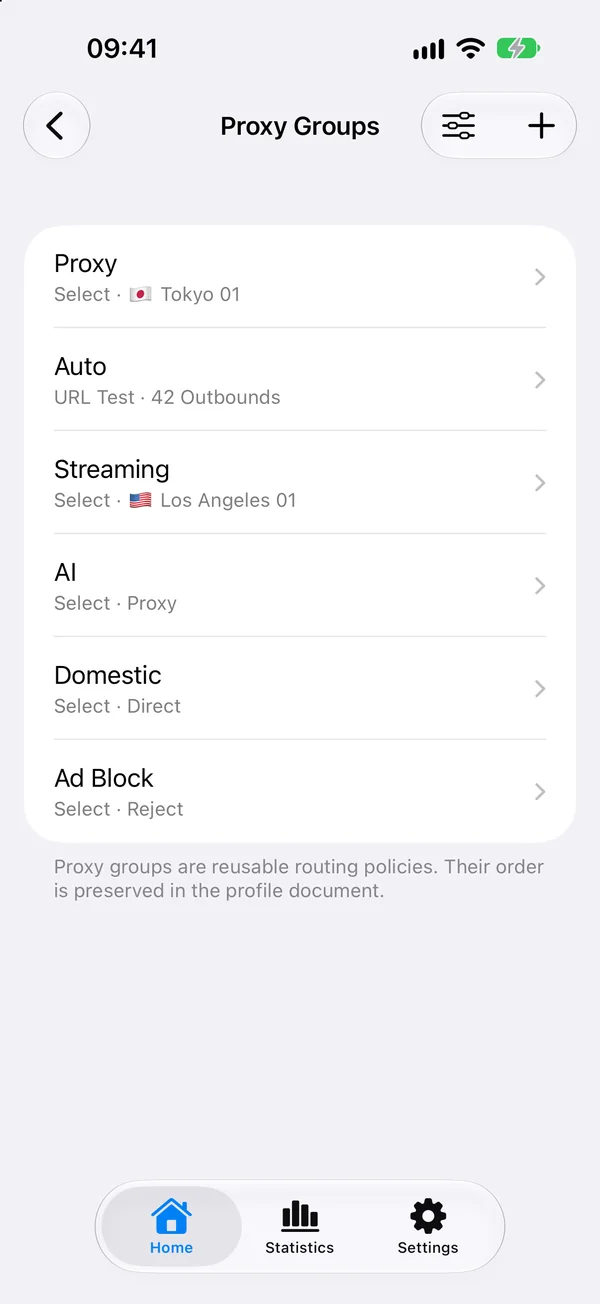
- Under Routing, tap any other group, such as one for streaming, to choose its outbound.
Your provider’s url-test groups become Fastest groups, and select groups become Manual groups. See Proxy groups and speed tests for how each type chooses.
Step 5: Allow the VPN and connect
- Turn on the switch on the status card on Home.
- The first time, iOS asks to add Potatso’s VPN configuration. Tap Allow.
The status changes to Connecting…, then Connected. If Potatso says Choose a server to connect, pick an outbound and connect again.
Keep the subscription up to date
- On Home, tap More Configurations.
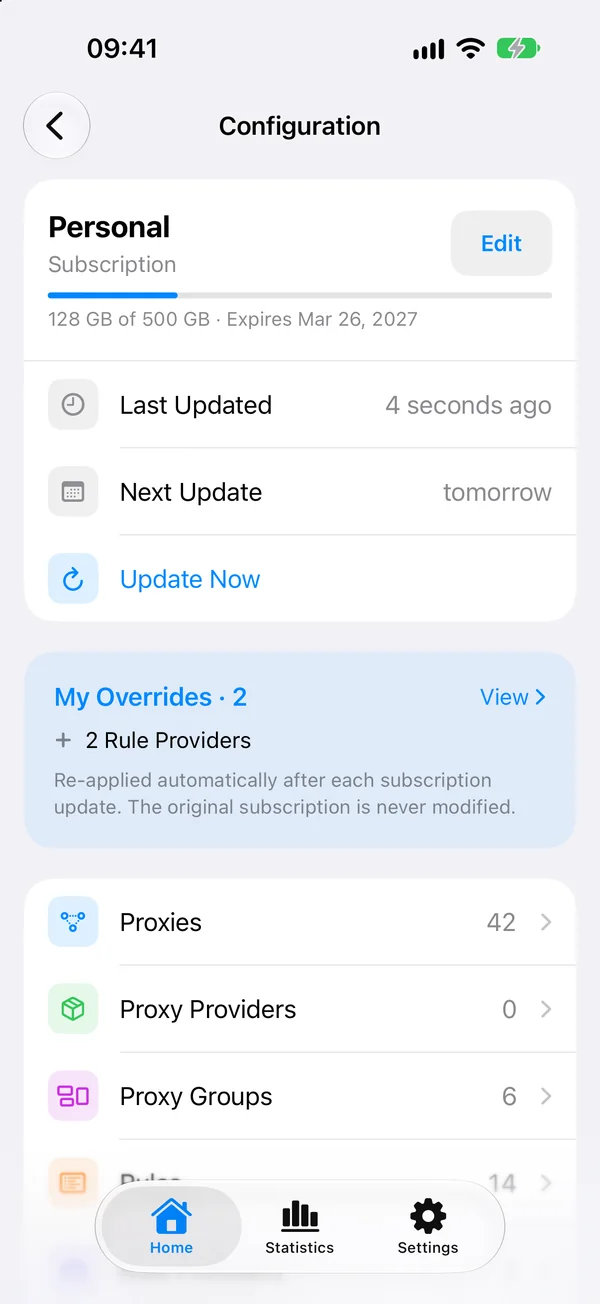
- The Configuration page shows the profile as a Subscription, with your data allowance, Last Updated and Next Update.
- Tap Update Now to update straight away.
To change the schedule, tap Edit on the same card. Under Automatic Updates, choose an Update Interval or turn updates off. You can change the Subscription URL there too, for example after your provider resets it; tap Update Now after saving. Until an update succeeds, the profile keeps what it last downloaded.
Your changes are kept
You can edit a subscription profile: add or change proxies, groups and rules, or change its DNS settings. Potatso saves these as overrides and applies them again after every update. The original subscription is never modified. Find them under My Overrides and tap View to revert a change or restore something you removed. View Original Configuration File shows what the subscription itself contains.
If it doesn’t work
- The import fails. Open the URL in Safari to check it still works. An expired plan or a reset link often returns an error page instead of a configuration.
- Fewer servers than expected. Check Compatibility Issues in the preview. Unsupported protocols are skipped with a reason.
- Only servers, no groups or rules. Your provider sent a Base64 list. Look in its dashboard for a Clash or Mihomo link.
- Connected, but nothing loads. A server in your main group may be down. Pick another node, or see Troubleshooting.
Next steps
- Moving from a desktop Clash app? See Move from Clash Verge, ClashX or Mihomo.
- Want to know which protocols your servers use? Read Proxy protocols compared.
- Got a single Shadowsocks server instead? Follow how to use Shadowsocks on iPhone.
Frequently asked questions
- Can I use a Clash subscription on iPhone?
- Yes. Clash itself doesn't run on iPhone, but Mihomo/Clash-compatible apps such as Potatso import the same subscription URL. Your servers, proxy groups, rules and DNS settings come along, and the subscription keeps updating.
- How do I import a Clash config file instead of a URL?
- Save the YAML file to the Files app, then in Potatso tap +, Import via Link/File, choose File under Source, and tap Choose File. The file must be UTF-8 text and no larger than 5 MB. A file is imported once, because it has nothing to update from.
- How often does Potatso update my Clash subscription?
- Daily by default. You can choose another interval, turn automatic updates off, or tap Update Now on the Configuration page at any time. Background updates run when iOS allows.
- Will updating the subscription delete my changes?
- No. Potatso records your edits to a subscription profile as overrides and applies them again after each update. You can see and revert them under My Overrides on the Configuration page.
- Why were some proxies or rules skipped?
- Potatso skips servers whose protocol or settings it doesn't support, such as TUIC or SSH proxies in a Clash file, and rules it can't represent. The preview lists each one under Compatibility Issues with the reason.