
To use Hysteria 2 on iPhone, install a client app that supports it, such as Potatso, and import the hysteria2:// or hy2:// link, QR code or subscription from your provider. Then allow the VPN configuration and connect. This guide covers each step, plus the Hysteria 2 settings you may need to enter by hand: obfuscation, port hopping, bandwidth and certificate pinning.
New to the protocol? Read What is Hysteria 2? first.
What you need
- An iPhone or iPad with iOS 17 or later.
- A network that lets UDP through. Hysteria 2 runs over QUIC, which uses UDP.
- A Hysteria 2 server. Your provider gives you one of these:
- a
hysteria2://orhy2://link, such ashysteria2://secret@hy2.example.com:443/?sni=hy2.example.com#Basic, - a QR code of that link,
- a subscription URL, usually a Clash subscription, or
- the raw settings: address, port, password, and any obfuscation or port hopping.
- a
hy2:// is just a shorter name for the same link. Potatso reads both.
Step 1: Install Potatso
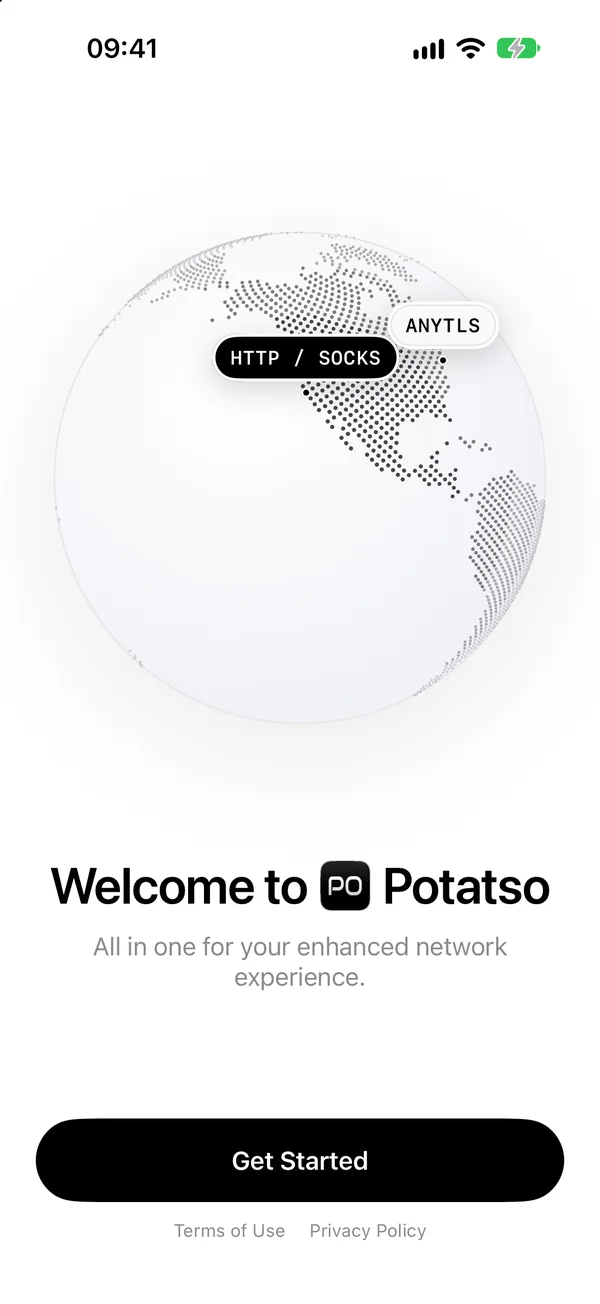
Download Potatso from the App Store and open it. Tap Get Started, then type a name for your profile, such as “Personal”, and tap Continue. A profile holds your servers, rules and DNS settings.
Step 2: Add your Hysteria 2 server
The Add your servers step offers four ways in. Pick the one that matches what your provider gave you.
From a link or subscription URL
- Copy the
hysteria2://link,hy2://link or subscription URL. - In Potatso, tap Paste a link, then Paste.
Potatso reads the password, obfuscation, hopping ports and certificate pin from the link. A subscription URL keeps updating after you import it. See how to import a Clash subscription on iPhone.
From a QR code
Tap Scan a QR code and point the camera at it. If the QR code is a screenshot in your photos, tap the photo button in the corner of the scanner and pick the picture.
By hand
- Tap Enter a server manually.
- Enter a Name, and choose Hysteria 2 as the Protocol.
- Fill in Address and Port, such as
hy2.example.comand443. - Enter the Password. If your server uses a user name and password, enter them as one:
name:password. - If your server uses obfuscation, choose Salamander or Gecko under Obfuscation and enter the Obfuscation Password. Otherwise keep Off.
- If your server uses port hopping, enter the ports under Port Hopping, such as
20000-30000or443,8443. Optionally set the Hop Interval in seconds (30 by default, at least 5). - Optionally enter a Download Bandwidth, such as
100 Mbps. See Choosing a download bandwidth below. - Open TLS Settings:
- Set Server Name if the certificate’s name differs from the address, for example when you connect by IP address.
- For a self-signed certificate, enter its SHA-256 as the Certificate Pin (SHA-256).
- Tap Save (the checkmark).
UDP is on by default for Hysteria 2. Turn off UDP Relay only if your server has UDP turned off.
Once the server is in, the step changes to Servers added. Tap Continue.
Reading the settings from a link
If you have a link but want to check it, here’s where each setting lives:
| In the link | In Potatso |
|---|---|
The part before @ |
Password |
| Host and port | Address and Port |
Extra ports after a comma, such as 443,20000-30000, or mport |
Port Hopping |
hop-interval |
Hop Interval |
obfs, obfs-password |
Obfuscation, Obfuscation Password |
down |
Download Bandwidth |
sni |
Server Name |
pinSHA256 |
Certificate Pin (SHA-256) |
insecure=1 |
Skip Certificate Verification |
For example, this link uses Salamander with the password hidden:
hysteria2://secret@hy2.example.com:443/?obfs=salamander&obfs-password=hidden#SalamanderChoosing a download bandwidth
The download bandwidth tells the server how fast to send to you. With a value, the server uses Hysteria’s Brutal congestion control and keeps that rate even when packets are lost.
- Leave it empty if you’re not sure. The server then adapts its rate itself.
- Set it to your real download speed, or a little below, if you know it. Bandwidth takes a number with a unit, such as
50 Mbps; a plain number means Mbps. - Don’t set it too high. The connection gets slower, not faster.
Potatso uploads with BBR congestion control, so there’s no upload bandwidth to set.
Certificate pinning vs skipping verification
Many Hysteria 2 servers use a self-signed certificate. Potatso can’t verify it the normal way, so you have two choices:
- Pin it. Enter the certificate’s SHA-256 as the Certificate Pin (SHA-256), or use a link with
pinSHA256. Potatso then trusts that certificate and no other, whatever its name. Ask your provider for the value if it isn’t in your link. - Skip verification. Turning on Skip Certificate Verification (
insecure=1in a link) makes Potatso accept any certificate. Anyone between you and the server could then read your traffic.
Pin whenever you can. If your server has a public certificate for its domain, you need neither.
Step 3: Choose a route
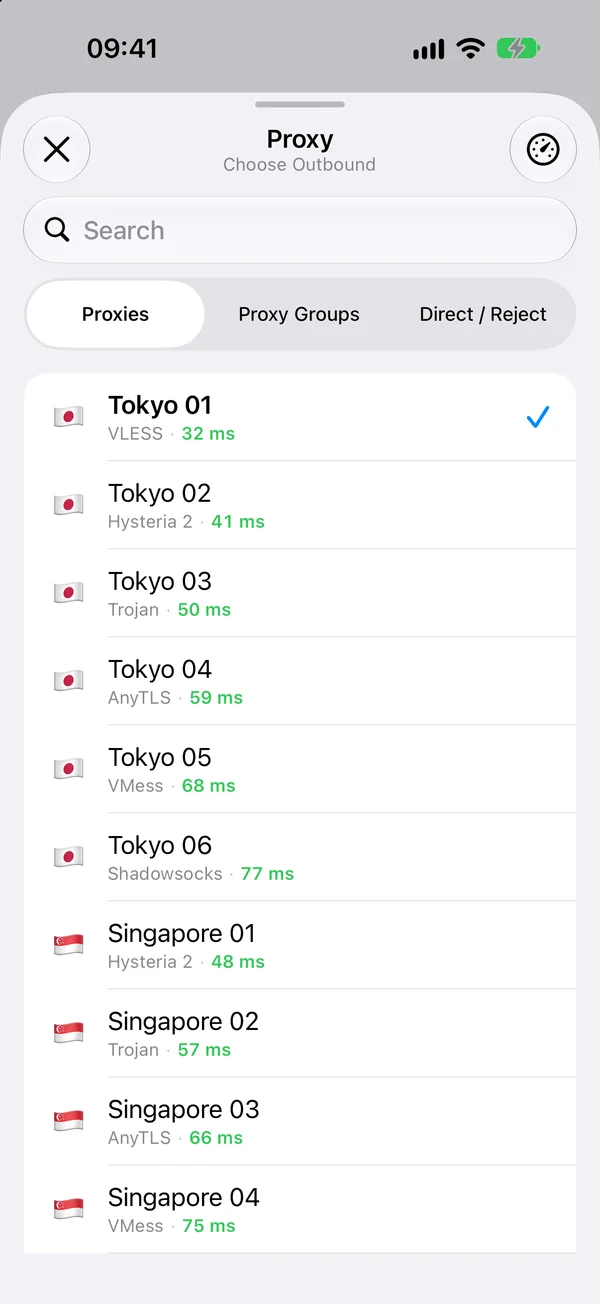
Potatso tests the latency of every server while you choose:
- Global sends all traffic through the server you pick. It’s the simplest choice with a single server.
- Rule lets your configuration’s rules decide what goes through the proxy and what connects directly. It’s offered when your import came with rules, as most Clash subscriptions do.
Pick your server and tap the button at the bottom, such as Use Basic.
Step 4: Allow the VPN and connect
Potatso sends your traffic through the proxy with a VPN configuration on your device, which iOS asks you to approve once.
- Tap Add VPN Configuration, then Allow when iOS asks.
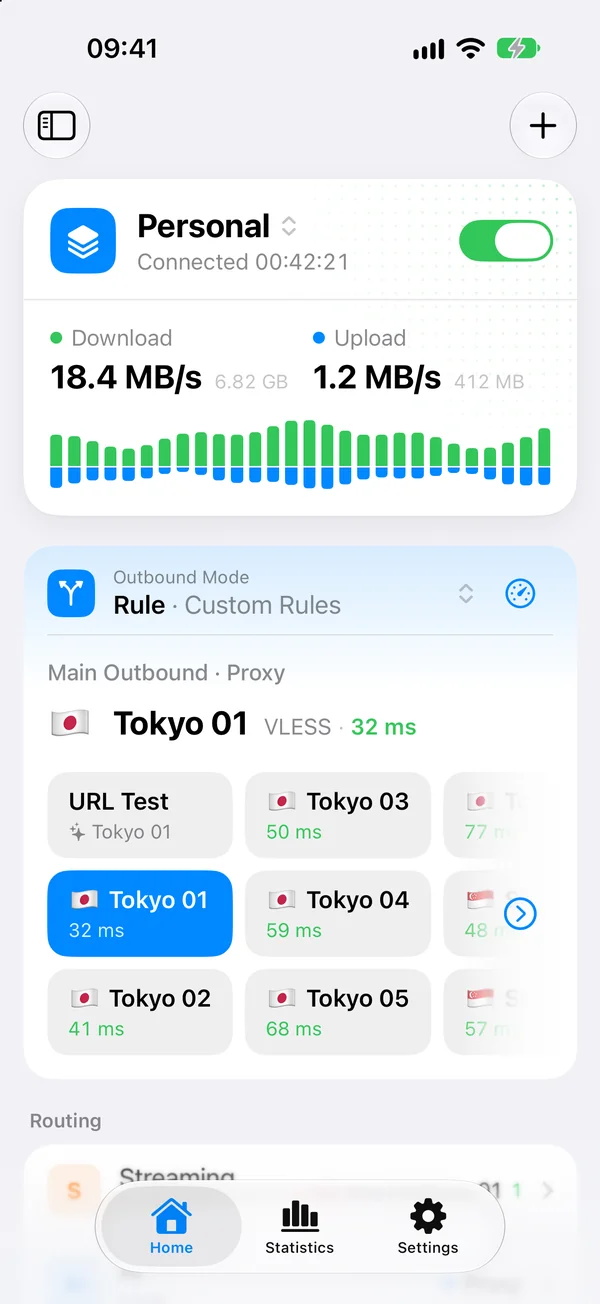
- On Home, turn on the switch on the status card.
The status changes to Connecting…, then Connected, and a VPN icon appears in the status bar. Open a website to check that it loads.
If Hysteria 2 doesn’t connect on iPhone
- Your network blocks UDP. Hysteria 2 can’t connect on networks that block UDP, and slows down on ones that throttle it. Try mobile data or another Wi-Fi network. If only one port is affected over time, port hopping can help.
- Wrong password. A wrong password doesn’t connect, and many servers just show their masquerade website instead of an error.
- Obfuscation doesn’t match. If the server uses Salamander or Gecko, the type and Obfuscation Password must match. If it doesn’t, choose Off. A mismatch looks like a timeout.
- Certificate error. The certificate doesn’t match the Server Name, or it’s self-signed. Set the right server name, or pin the certificate.
- Slow or unstable. Clear the Download Bandwidth, or set it lower. A value above your real speed makes things worse.
- Large UDP packets fail through an Xray server. Xray’s Hysteria 2 server damages UDP packets over about 1,100 bytes. The official server, sing-box and Mihomo don’t have this problem.
- The server isn’t imported. Potatso skips servers that need settings it doesn’t support, such as ECH or a client certificate, and links with
echorhysteria2+realm://.
All supported settings are in the Hysteria 2 reference. For general connection problems, open Settings > Troubleshooting in Potatso, or see Troubleshooting.
Next steps
- Wondering how Hysteria 2 compares with VLESS REALITY, Trojan and AnyTLS? See Proxy protocols compared.
- Need a TCP-based server for networks that block UDP? Try VLESS REALITY on iPhone.
- Use several servers? Let Potatso pick the fastest with proxy groups and speed tests.
Frequently asked questions
- How do I use Hysteria 2 on iPhone?
- Install a client app that supports Hysteria 2, such as Potatso, and import your hysteria2:// or hy2:// link, QR code or subscription. Allow the VPN configuration when iOS asks, then turn on the connection on the Home screen.
- What's the difference between hysteria2:// and hy2:// links?
- None. hy2:// is a shorter name for the same link format. Potatso imports both.
- What should I set as the download bandwidth?
- Your real download speed, such as 100 Mbps, or leave it empty. With a value, the server sends at that rate even when packets are lost; set it too high and the connection gets slower. Empty, the server adapts its rate itself.
- My Hysteria 2 server uses a self-signed certificate. What should I do?
- Pin the certificate: enter its SHA-256 as the Certificate Pin in the server's TLS settings, or use a link with pinSHA256. Avoid Skip Certificate Verification, which lets anyone between you and the server read your traffic.
- Why doesn't Hysteria 2 connect on some Wi-Fi networks?
- Hysteria 2 runs over UDP, and some networks block or throttle UDP. Try mobile data or another network, or ask your provider about port hopping or a TCP-based server, such as VLESS or Trojan.