
Shadowsocks is one of the simplest and most widely supported proxy protocols, and almost every provider and self-hosted server script can hand you a Shadowsocks server. This guide shows how to use one on an iPhone or iPad with Potatso, a free proxy client for iOS.
New to the protocol itself? Read What is Shadowsocks? first.
What you need
- An iPhone or iPad with iOS 17 or later.
- A Shadowsocks server. Your provider gives you one of these:
- an
ss://link, such asss://YWVzLTI1Ni1nY206c2VjcmV0@ss.example.com:8388#Tokyo, - a QR code of that link,
- a subscription URL that lists several servers, or
- the raw settings: server address, port, password and cipher (for example
aes-256-gcm).
- an
Why not the iOS Settings app? iOS can only use an HTTP proxy, and only per Wi-Fi network (Settings → Wi-Fi → ⓘ → Configure Proxy). It can’t speak Shadowsocks, and it doesn’t cover mobile data. A client app sends all your traffic through the server on any network.
Step 1: Install Potatso
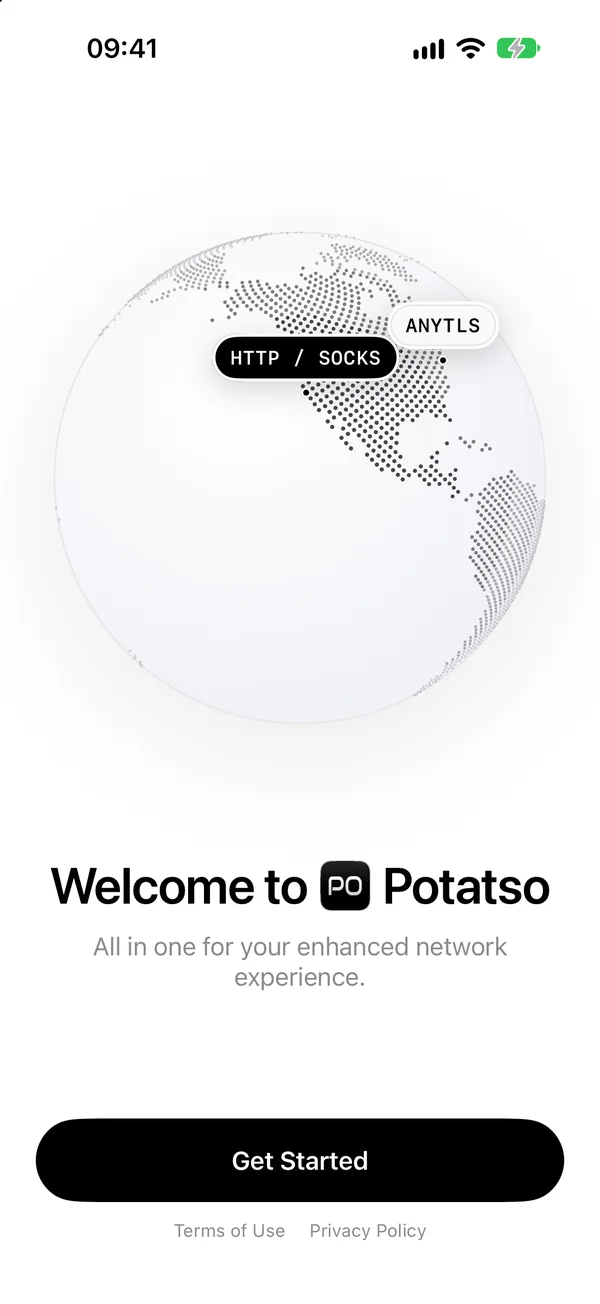
Download Potatso from the App Store and open it. Tap Get Started, then type a name for your profile, such as “Personal”, and tap Continue. A profile holds your servers, rules and DNS settings.
Step 2: Add your Shadowsocks server
The Add your servers step offers four ways in. Pick the one that matches what your provider gave you.
From an ss:// link or subscription URL
- Copy the
ss://link or the subscription URL. - In Potatso, tap Paste a link, then Paste.
Potatso detects the format on its own. A subscription URL keeps updating after you import it, so new servers from your provider show up without doing anything.
From a QR code
Tap Scan a QR code and point the camera at it. If the QR code is a screenshot in your photos, tap the photo button in the corner of the scanner and pick the picture.
By hand
- Tap Enter a server manually.
- Enter a Name, and choose Shadowsocks as the Protocol.
- Fill in Address and Port.
- Enter the Password and choose the Cipher your server uses.
- If your server uses a plugin such as simple-obfs, v2ray-plugin or ShadowTLS, choose it under Plugin and enter its options in Plugin Parameter, for example
obfs=tls;obfs-host=cdn.example.com. - Tap Save (the checkmark).
Once the server is in, the step changes to Servers added. Tap Continue.
Step 3: Choose a route
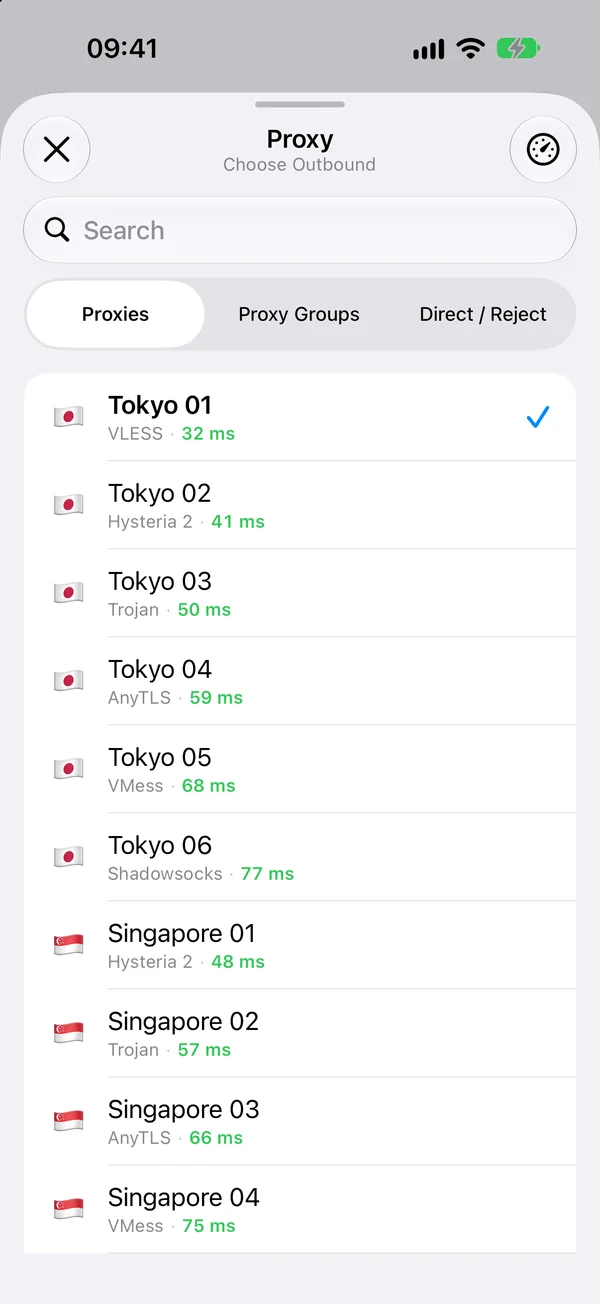
Potatso tests the latency of every server while you choose:
- Global sends all traffic through the server you pick. It’s the simplest choice with a single server.
- Rule lets your configuration’s rules decide what goes through the proxy and what connects directly. It’s offered when your import came with rules, as most Clash subscriptions do.
Pick your server and tap the button at the bottom, such as Use Tokyo.
Step 4: Allow the VPN and connect
Potatso sends your traffic through the proxy with a VPN configuration on your device, which iOS asks you to approve once.
- Tap Add VPN Configuration, then Allow when iOS asks.
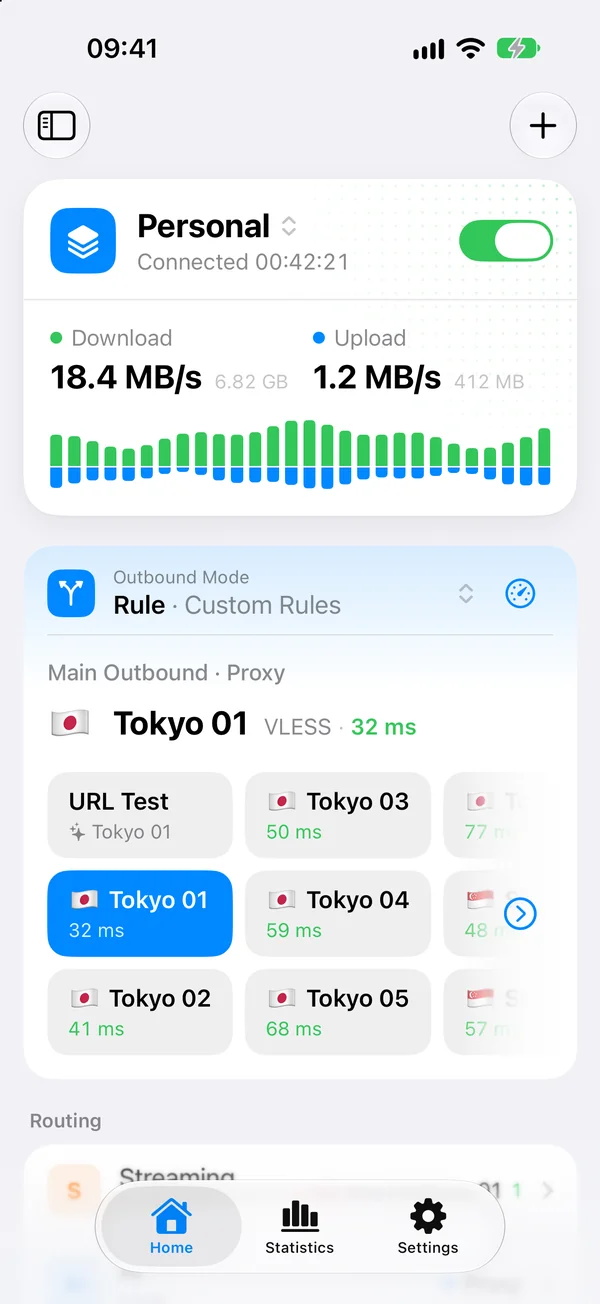
- On Home, turn on the switch on the status card.
The status changes to Connecting…, then Connected, and a VPN icon appears in the status bar. Open a website to check that it loads. To disconnect, turn the switch off.
If it doesn’t connect
Most Shadowsocks problems come from a setting that doesn’t match the server exactly:
- Wrong password or cipher. Both must match the server character for character. Shadowsocks has no handshake that reports a wrong password: the server just drops the connection, so it looks like a timeout.
- A 2022 cipher with the wrong key. Ciphers such as
2022-blake3-aes-128-gcmuse a Base64 key of a fixed length (16 bytes for AES-128, 32 bytes for the others), not a free-form password. Copy the key exactly as the server has it. - An unsupported plugin. Potatso has simple-obfs, v2ray-plugin (WebSocket), gost-plugin, ShadowTLS, Restls and JLS built in. Servers that need Cloak or kcptun can’t be used on iOS this way.
- UDP doesn’t work (voice calls, some games). Check that your server relays UDP. With a plugin other than simple-obfs, Shadowsocks carries TCP only.
The full list of supported ciphers, plugins and link formats is in the Shadowsocks reference, and general connection problems are covered in Troubleshooting.
Next steps
- Use a subscription with many servers? Group them and let Potatso pick the fastest: see how to import a Clash subscription on iPhone.
- Wondering whether Shadowsocks is still the right protocol for you? Compare it with VLESS, Trojan, Hysteria 2 and AnyTLS in Proxy protocols compared.
Frequently asked questions
- Can I use Shadowsocks on iPhone without an app?
- No. The proxy settings built into iOS only accept HTTP proxies, and only for the Wi-Fi network you set them on. To use a Shadowsocks server you need a client app, such as Potatso, that adds a VPN configuration and sends your traffic through the server.
- Which cipher should I choose?
- Use exactly the cipher your server is set up with. If you run the server yourself, prefer a 2022 cipher such as 2022-blake3-aes-128-gcm, or an AEAD cipher such as aes-256-gcm or chacha20-ietf-poly1305. Avoid old stream ciphers like rc4-md5.
- Does Shadowsocks on iPhone support UDP?
- Yes. Potatso relays UDP through Shadowsocks servers by default. Turn UDP off in the server's settings only if your server doesn't relay it.
- Is Potatso free?
- Yes. Potatso is free on the App Store for iPhone and iPad with iOS 17 or later. Optional Pro features, such as more than one profile, need a subscription.