
To use a SOCKS5 proxy on iPhone, you need a proxy client app: iOS has no SOCKS5 setting at all. Its Settings app only offers an HTTP proxy, and only for the Wi-Fi network you set it on. This guide shows how to use a SOCKS5 proxy, or an HTTP proxy, for your whole iPhone or iPad, on Wi-Fi and mobile data, with Potatso, a free proxy client.
It covers the host:port:user:pass format residential and datacenter proxy providers use, and what happens to UDP. Not sure which proxy type to use? Read SOCKS5 vs HTTP proxy.
Can iPhone use a SOCKS5 proxy without an app?
No. Here’s what iOS offers on its own, in Settings → Wi-Fi → ⓘ → Configure Proxy:
| iOS Settings | A proxy client app | |
|---|---|---|
| HTTP proxy | Yes | Yes |
| HTTPS proxy (TLS to the proxy) | No | Yes |
| SOCKS5 | No | Yes |
| Mobile data | No | Yes |
| Every Wi-Fi network | No, set it on each one | Yes |
| UDP | No | With SOCKS5 |
The iOS setting is also applied per network, so it stops working the moment you switch to mobile data or another Wi-Fi. A client app like Potatso adds a VPN configuration that captures all your traffic and sends it through the proxy, whatever network you’re on.
What you need
- An iPhone or iPad with iOS 17 or later.
- Your proxy details. Providers give them in one of these forms:
- a line such as
proxy.example.com:1080:alice:s3cret, - a link such as
socks5://alice:s3cret@proxy.example.com:1080, or - separate fields: host, port, user name and password.
- a line such as
- To know whether the port is for SOCKS5 or HTTP. Many providers use different ports for each, so check their dashboard.
Step 1: Install Potatso
Download Potatso from the App Store and open it. Tap Get Started, then type a name for your profile, such as “Residential”, and tap Continue.
Step 2: Add your proxy
From a host:port:user:pass line
Residential and datacenter proxy providers usually give you one line per proxy, with four parts separated by colons:
proxy.example.com:1080:alice:s3cret| Part | Value | Where it goes in Potatso |
|---|---|---|
| Host | proxy.example.com |
Address |
| Port | 1080 |
Port |
| User | alice |
Username |
| Pass | s3cret |
Password |
Potatso doesn’t read this four-part format directly. Either enter it by hand, as below, or rewrite it as a link and paste that:
socks5://alice:s3cret@proxy.example.com:1080#ResidentialIn a link, percent-encode special characters in the password: write p:ss as p%3Ass and @ as %40. Some providers put options such as a country or a sticky session in the user name, for example alice-country-us. Copy the user name exactly, dashes and all.
IP allowlisting. Some providers skip the password and only accept connections from IP addresses you register. Your iPhone’s IP address changes between Wi-Fi and mobile data, so use user name and password authentication if your provider offers it.
By hand
- Tap Enter a server manually.
- Enter a Name, and choose SOCKS5 as the Protocol. For an HTTP proxy, choose HTTP.
- Fill in Address and Port.
- Turn on Authentication, then enter the Username and Password. Leave it off for a proxy without a login.
- Turn on TLS only if your provider says the proxy uses TLS: SOCKS5 over TLS, or an HTTPS proxy. Under TLS Settings you can set a Certificate Pin (SHA-256) for a self-signed certificate.
- For SOCKS5, leave UDP Relay on if your provider relays UDP, and turn it off if not. See UDP Relay.
- Tap Save (the checkmark).
From a link or QR code
If you have a link, copy it and tap Paste a link, then Paste. Potatso reads socks5://, socks5h://, socks:// and socks5+tls:// links, and http:// and https:// proxy links. For a QR code, tap Scan a QR code. Clash, Surge and Xray configurations with SOCKS5 or HTTP proxies import too.
Once the proxy is in, tap Continue.
Use an HTTP proxy on iPhone for the whole device
The steps are the same with HTTP as the protocol: Potatso then sends all your apps through the HTTP proxy on any network, not just one Wi-Fi network. For an HTTPS proxy, choose HTTP and turn on TLS.
Keep in mind that an HTTP proxy carries TCP only. Websites and most apps work, but UDP traffic can’t go through it. Use the proxy’s CONNECT port, not a port that only forwards plain web pages.
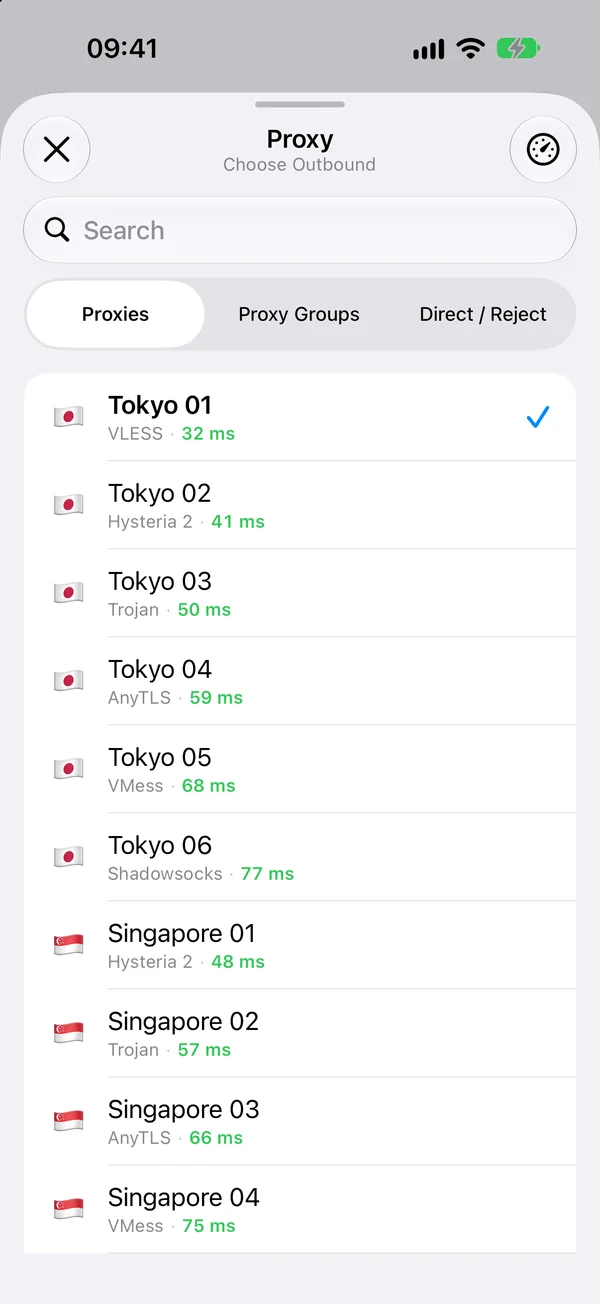
Step 3: Choose a route
With a single proxy, choose Global to send all traffic through it, and tap the button at the bottom, such as Use Residential. If you imported a configuration with rules, you can choose Rule instead.
Step 4: Allow the VPN and connect
- Tap Add VPN Configuration, then Allow when iOS asks.
- On Home, turn on the switch on the status card.
The status changes to Connecting…, then Connected. To check that it works, open a “what is my IP” website in Safari: it should show the proxy’s IP address, not your own.
UDP Relay: what happens to calls and games
UDP carries voice and video calls, many games and QUIC. Not every proxy can relay it:
| Proxy | UDP in Rule mode | UDP in Global mode |
|---|---|---|
| SOCKS5, UDP Relay on | Through the proxy | Through the proxy |
| SOCKS5, UDP Relay off | Next matching rule decides, else direct | Doesn’t work |
| HTTP or HTTPS | Next matching rule decides, else direct | Doesn’t work |
Two things to know:
- UDP sent directly uses your real IP address, not the proxy’s. If the point of the proxy is to hide your IP, use a SOCKS5 proxy that relays UDP.
- With SOCKS5 over TLS, only TCP is encrypted. UDP travels to the server outside TLS.
When UDP doesn’t work, browsers fall back to TCP, so websites still load, but calls and games may not.
If it doesn’t connect
- Wrong user name or password. If the proxy asks for a login and Authentication is off, Potatso doesn’t connect. Check the user name, including any options your provider adds to it.
- SOCKS5 and HTTP ports mixed up. A SOCKS5 server on an HTTP port, or the other way round, won’t answer. Check which protocol each port is for.
- IP allowlisting. Register your current IP address with the provider, or switch to password authentication.
- Only some sites work through an HTTP proxy. Some proxies only allow
CONNECTto port 443. Ask your provider. - Certificate errors with TLS. Pin the proxy’s certificate, or turn on Skip Certificate Verification only for testing.
- Unsupported options. Potatso doesn’t support SOCKS4, GSSAPI authentication or Digest authentication.
- One app refuses to work. Some apps block datacenter and proxy IP addresses. See an app or site fails.
Every setting is listed in the SOCKS5 reference and the HTTP and HTTPS reference. For other problems, see Troubleshooting.
Next steps
- Need encryption or something harder to fingerprint? Compare SOCKS5 with Shadowsocks and others in Proxy protocols compared.
- Have a subscription with many proxies? See how to import a Clash subscription on iPhone.
Frequently asked questions
- Does iPhone support SOCKS5 proxies natively?
- No. The iOS Settings app only lets you set an HTTP proxy, and only for one Wi-Fi network at a time. To use a SOCKS5 proxy you need a client app, such as Potatso, that sends your traffic through it.
- Can I use a proxy on iPhone with mobile data?
- Not from iOS Settings, which has a proxy option only for Wi-Fi networks. A proxy client app like Potatso uses a VPN configuration, so the proxy works on Wi-Fi and mobile data alike.
- How do I enter host:port:user:pass on iPhone?
- Split the line at the colons: the first part is the address, then the port, the user name and the password. Enter them in Potatso's server form, or turn them into a link such as socks5://user:pass@host:port and paste it.
- Does a SOCKS5 proxy encrypt my traffic?
- No. Plain SOCKS5 sends your password and the sites you visit unencrypted, although HTTPS sites stay encrypted end to end. If your provider offers SOCKS5 over TLS, use it to encrypt TCP traffic to the proxy.
- Is Potatso free?
- Yes. Potatso is free on the App Store for iPhone and iPad with iOS 17 or later. Optional Pro features, such as more than one profile, need a subscription.