
To use Trojan on iPhone, you need a client app that speaks the protocol, because iOS has no Trojan setting of its own. This guide shows how to add a Trojan server to Potatso, a free proxy client for iPhone and iPad, from a trojan:// link, a QR code, a subscription, or by hand, including WebSocket, gRPC and REALITY servers.
New to the protocol? Read What is Trojan? first.
What you need
- An iPhone or iPad with iOS 17 or later.
- A Trojan server. Your provider gives you one of these:
- a
trojan://link, such astrojan://secret@trojan.example.com:443?sni=trojan.example.com#Tokyo, - a QR code of that link,
- a subscription URL that lists several servers, or
- the raw settings: address, port (usually 443), password, and any transport or REALITY settings.
- a
Check the transport first. If your provider mentions WebSocket (
ws), gRPC, a path, a service name or REALITY, you’ll need those values too. A link or subscription carries them for you.
Step 1: Install Potatso
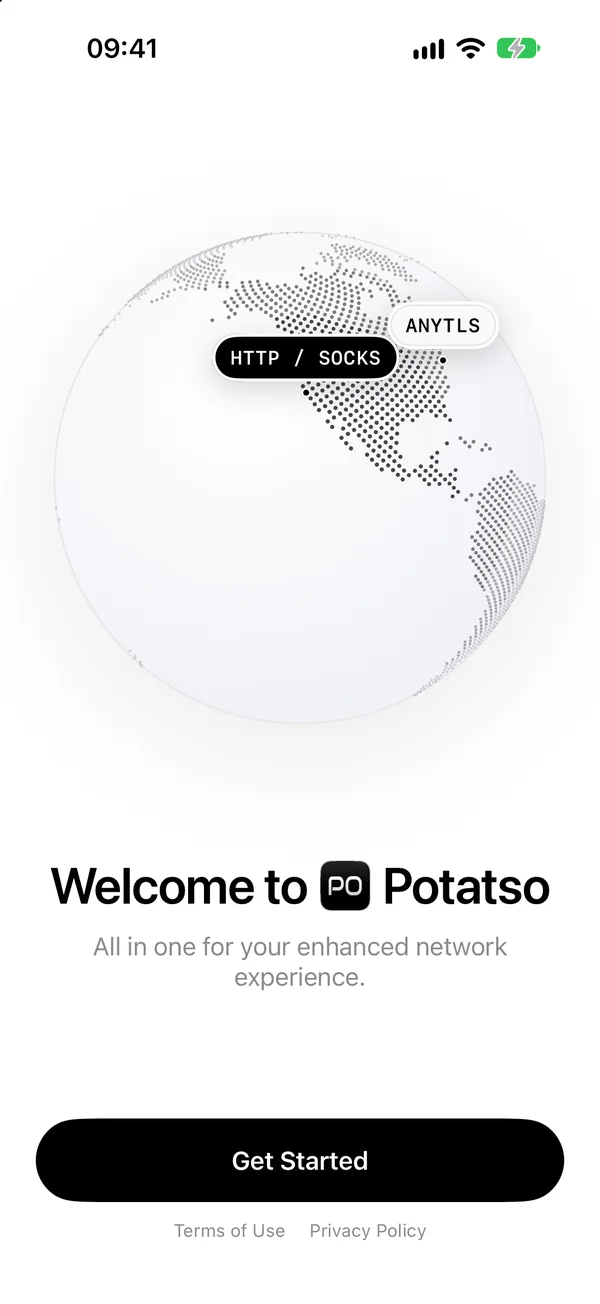
Download Potatso from the App Store and open it. Tap Get Started, then type a name for your profile, such as “Personal”, and tap Continue. A profile holds your servers, rules and DNS settings.
Step 2: Add your Trojan server
The Add your servers step offers four ways in. Pick the one that matches what your provider gave you.
From a trojan:// link or subscription URL
- Copy the
trojan://link or the subscription URL. - In Potatso, tap Paste a link, then Paste.
Potatso reads the transport, server name, REALITY keys and other settings from the link. It also imports trojan-go:// links, Clash and Mihomo subscriptions, and Xray, V2Ray and Surge configurations. If a server uses something Potatso doesn’t support, the import says why instead of adding a server that can’t connect.
From a QR code
Tap Scan a QR code and point the camera at it. If the QR code is a screenshot in your photos, tap the photo button in the corner of the scanner and pick the picture.
By hand
- Tap Enter a server manually.
- Enter a Name, and choose Trojan as the Protocol.
- Fill in Address and Port.
- Enter the Password exactly as your provider gives it.
- Set the Transport, the TLS settings and UDP, as described below.
- Tap Save (the checkmark).
TLS is always on for Trojan, so there’s nothing to switch on.
Transport: WebSocket and gRPC
Leave Transport on TCP for a plain Trojan server. Otherwise pick the one your server uses:
| Transport | Fields to fill in | Example |
|---|---|---|
| WebSocket | Host, Path | cdn.example.com, /ws |
| gRPC | Service Name | TrojanGun |
| HTTP/2 | Host, Path | cdn.example.com, /h2 |
| HTTPUpgrade | Host, Path | cdn.example.com, /up |
The path and service name must match the server exactly, including capital letters. A WebSocket path such as /ws?ed=2048 also turns on early data, which saves a round trip when connecting.
Server name (SNI) and TLS settings
Tap TLS Settings for the TLS options:
- Server Name: the name sent in the TLS handshake, also called SNI. Leave it empty to use the address. Set it when the certificate’s domain differs from the address, for example when you connect to an IP address or through a CDN.
- Client Fingerprint: makes the handshake look like a browser’s, such as
chromeorsafari. Fill it in if your provider lists one. - ALPN: leave it empty unless your provider gives a value.
- Certificate Pin (SHA-256): for a server with a self-signed certificate. Pinning accepts only that certificate.
- Skip Certificate Verification: accepts any certificate. Avoid it, because anyone between you and the server could then read your traffic. Pin the certificate instead.
REALITY
A REALITY server borrows another website’s TLS handshake. Fill in:
- Reality Public Key and Reality Short ID, as your provider gives them.
- Server Name (under TLS Settings): the website the server borrows, such as
www.example.com. - Reality Fingerprint, if your provider lists one. Without one, Potatso uses
chrome.
REALITY works with no transport (TCP) or with gRPC.
UDP Relay is off by default
UDP carries voice and video calls, many games and QUIC. For Trojan servers, UDP Relay starts off, as in Clash. Turn it on if your server relays UDP. Xray, sing-box and trojan-go servers all do. A Clash subscription turns it on with udp: true.
Once the server is in, the step changes to Servers added. Tap Continue.
Step 3: Choose a route
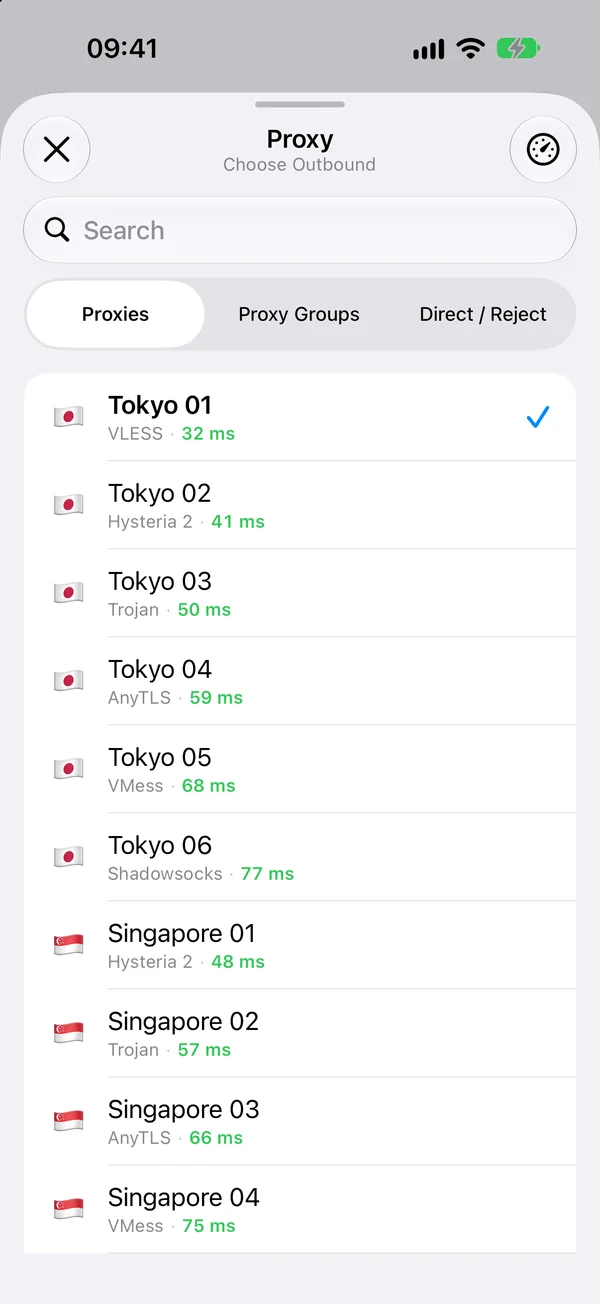
Potatso tests the latency of every server while you choose:
- Global sends all traffic through the server you pick. It’s the simplest choice with a single server.
- Rule lets your configuration’s rules decide what goes through the proxy and what connects directly. It’s offered when your import came with rules, as most Clash subscriptions do.
Pick your server and tap the button at the bottom, such as Use Tokyo.
Step 4: Allow the VPN and connect
Potatso sends your traffic through the proxy with a VPN configuration on your device, which iOS asks you to approve once.
- Tap Add VPN Configuration, then Allow when iOS asks.
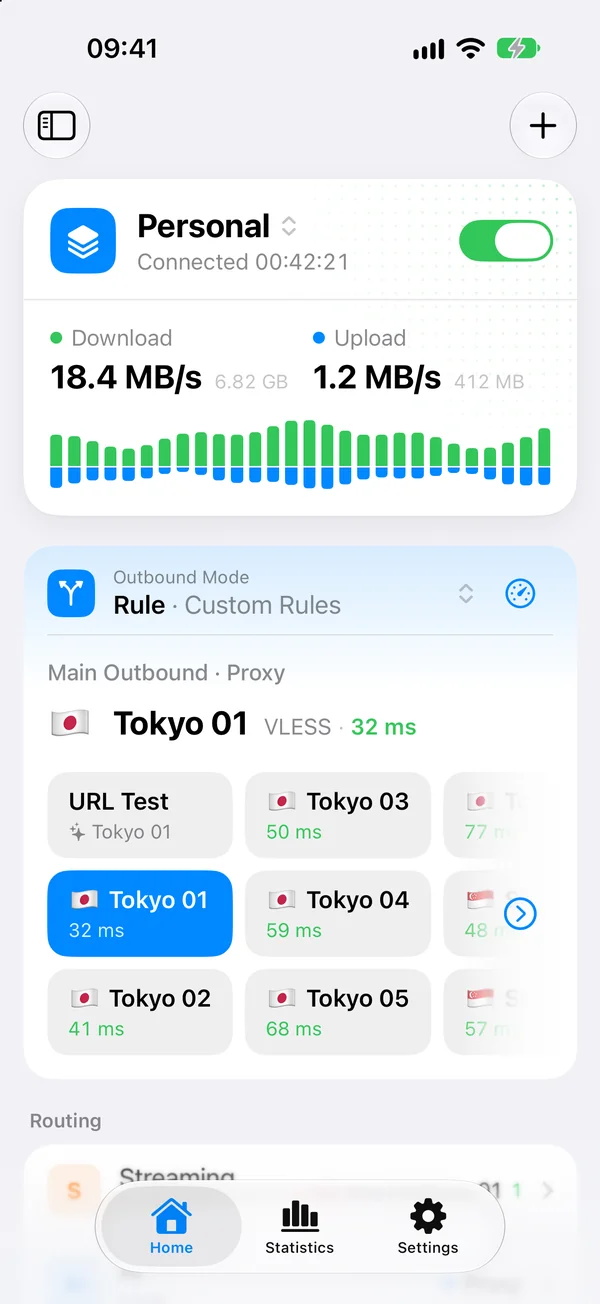
- On Home, turn on the switch on the status card.
The status changes to Connecting…, then Connected, and a VPN icon appears in the status bar. Open a website to check that it loads.
If it doesn’t connect
Trojan problems usually come from one setting that doesn’t match the server:
- Wrong password. A Trojan server doesn’t report a bad password. It answers like an ordinary website, so the connection simply never works. Check the password first.
- Certificate errors. The certificate must be valid for the Server Name, or for the address when that’s empty. If you connect to an IP address, set Server Name to the certificate’s domain. For a self-signed certificate, set a Certificate Pin (SHA-256).
- Wrong transport details. A WebSocket server with a different Path or Host, or a gRPC server with a different Service Name, refuses the connection. Compare them with your provider’s settings or re-import the link.
- REALITY mismatch. The public key, short ID and server name must all match the server. REALITY with WebSocket or HTTP/2 isn’t supported.
- Unsupported server. Potatso doesn’t support the XHTTP, mKCP and QUIC transports, trojan-go’s Shadowsocks encryption, or ShadowTLS, Restls and JLS around Trojan.
- Only calls or games fail. Turn on UDP Relay, and check that your server relays UDP.
The full list of supported transports, TLS options and link parameters is in the Trojan reference. For other problems, Potatso has a guided check under Settings > Troubleshooting, described in Troubleshooting.
Next steps
- Got a subscription with many servers? Group them and let Potatso pick the fastest: see how to import a Clash subscription on iPhone.
- Your provider also offers VLESS? Compare the two in How to use VLESS + REALITY on iPhone and Proxy protocols compared.
Frequently asked questions
- Can I use Trojan on iPhone without an app?
- No. iOS only has a built-in HTTP proxy setting, per Wi-Fi network, and VPN types such as IKEv2. To use a Trojan server you need a client app, such as Potatso, that speaks the Trojan protocol.
- Why doesn't UDP work with my Trojan server?
- UDP Relay is off by default for Trojan servers, as in Clash. Open the server's settings in Potatso and turn on UDP Relay if your server relays UDP, which Xray, sing-box and trojan-go servers do.
- What should I enter as the server name (SNI)?
- Usually nothing: Potatso uses the server address. Set Server Name only when the certificate's domain differs from the address, for example when you connect by IP address, or for REALITY, where it's the website the server borrows.
- Does Potatso support trojan-go links?
- Yes. Potatso imports trojan-go:// links with no transport or with WebSocket. It doesn't import links that need trojan-go's Shadowsocks encryption, and it doesn't support trojan-go's own multiplexing.
- Is Potatso free?
- Yes. Potatso is free on the App Store for iPhone and iPad with iOS 17 or later. Optional Pro features, such as more than one profile, need a subscription.